
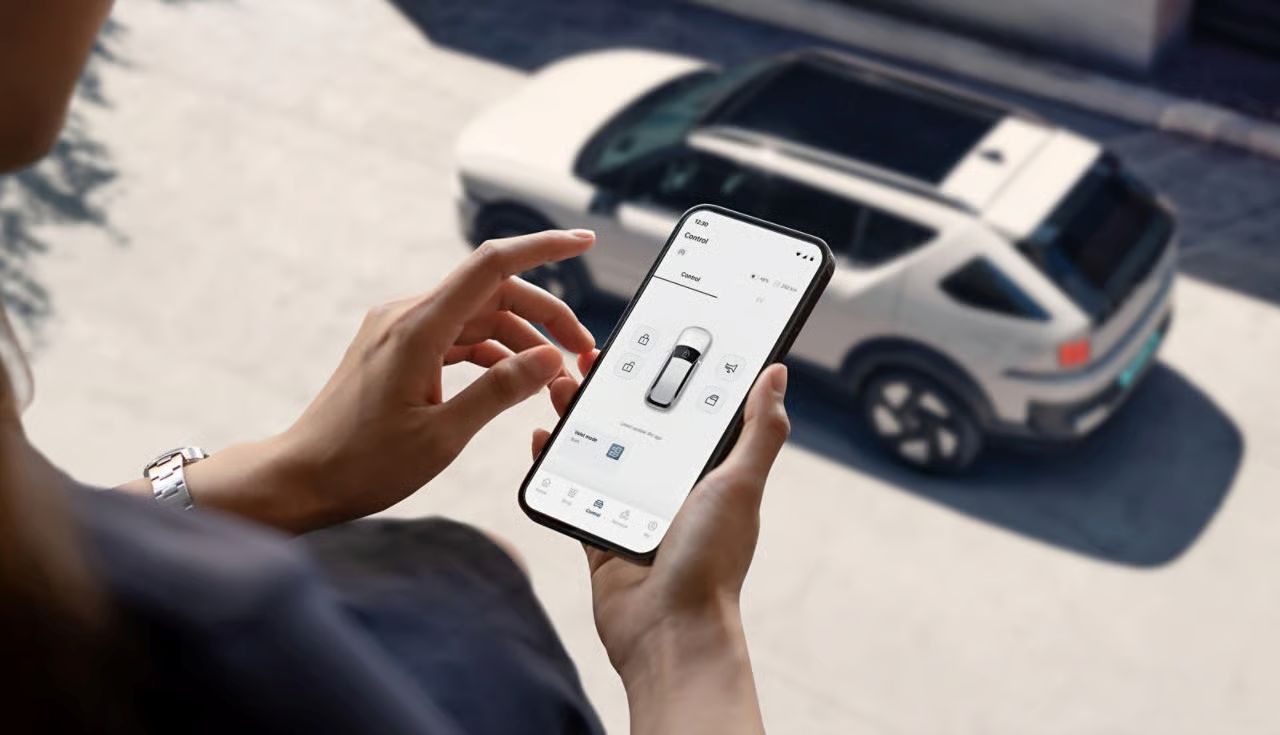
How do you use the Hyundai App to unlock a car, and can you do it remotely? You can use the app to lock or unlock your car doors before you step outside, or set up your smartphone itself to act as a key when you’re set up with Bluelink®. Here’s how to use the Hyundai App to unlock your doors and what you need to set it up, courtesy of Key Hyundai.
Setting Up the Application
The My Hyundai app with Bluelink® is available for Hyundai owners who want to access their vehicle remotely. To link the app to your vehicle, you will need your VIN, which can be found on the driver's side dashboard; enter it in the app or at owners.hyundaiusa.com to complete enrollment.
Unlocking Your Doors Remotely
Activating your car door locks on the My Hyundai app is simple. Once you’ve connected the app, the home screen will display your vehicle status and tell you whether the doors are currently locked or unlocked. You can then press the buttons to engage or disengage the locks remotely.
Using Your Digital Key®
Another feature you can do with Bluelink® on your Hyundai app is use your smartphone as a physical key. While the vehicle is on, open the Hyundai Digital Key app, press the + button to begin pairing, and place your phone on the wireless charging pad. Once the vehicle detects your phone, confirm the pairing by navigating to Setup > Vehicle > Digital Key > Smartphone Key > Save in your infotainment system.
When this is set up, you can press your phone to a car’s door lock to activate it.
Learn How to Use the Hyundai App to Unlock a Car in Jacksonville, FL
Want to learn about the other major features of the Hyundai app besides unlocking a car? Contact Key Hyundai today to explore the app or troubleshoot any issues.
Categories:
New Inventory


